

Wincompanion: The Smart Way to Level Up Your Windows Experience
You’ve got a Windows PC that could do more. Much more. But between random slowdowns, cluttered settings, and that nagging feeling your system isn’t performing as it should, you’re...

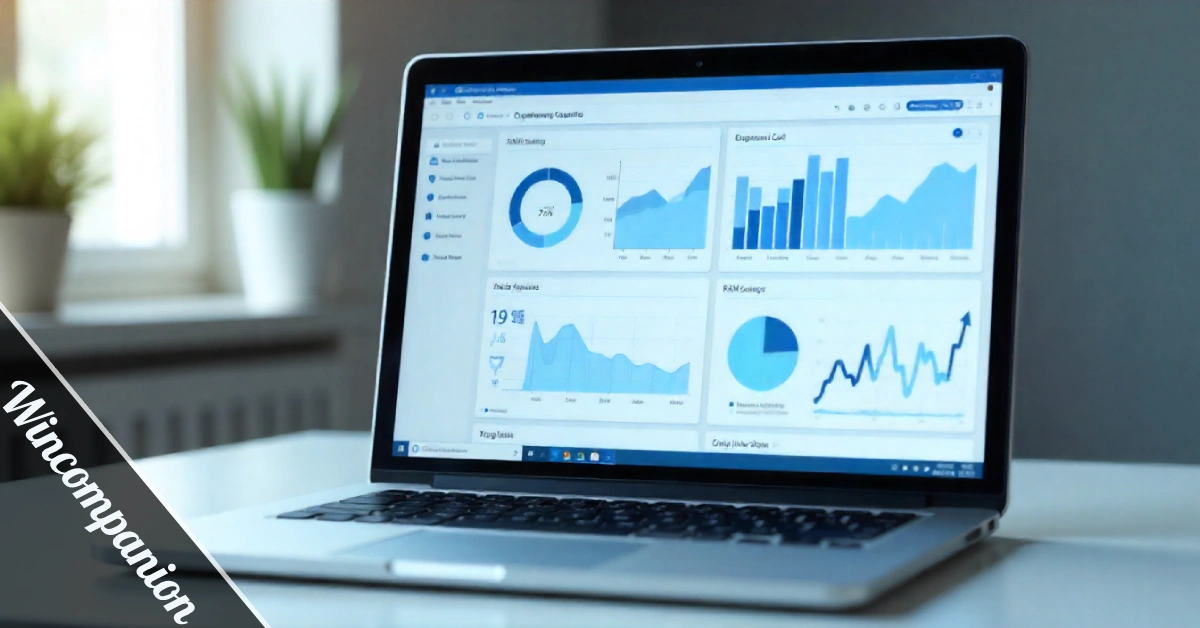
You’ve got a Windows PC that could do more. Much more. But between random slowdowns, cluttered settings, and that nagging feeling your system isn’t performing as it should, you’re stuck. Enter Wincompanion, the utility that bridges the gap between “meh” and “smooth as butter.” Think of it as your system’s personal trainer, minus the protein shake lectures.
Table Of Content
- What Exactly Is Wincompanion?
- Core Features That Actually Matter
- Performance Optimization Without the Snake Oil
- Privacy Controls That Make Sense
- System Monitoring That Doesn’t Overwhelm
- How Wincompanion Stacks Up Against Alternatives
- Getting Started: Setup and First Impressions
- Real-World Use Cases That Hit Different
- For Remote Workers Juggling Video Calls
- For Gamers Fighting Frame Drops
- For Small Business Owners: Maximizing Hardware Lifespan
- The Bottom Line: Is It Worth Your Time?
This isn’t about cramming features you’ll never touch. It’s about practical tools that actually solve the problems Windows users face daily: performance hiccups, bloatware drama, and settings buried six menus deep. Whether you’re grinding through work projects or just want your PC to stop acting like it’s powered by hamsters, this guide breaks down what Wincompanion does and why it might be the cheat code your setup needs.
What Exactly Is Wincompanion?
Wincompanion is a Windows optimization platform built for people who don’t want to become system admins just to keep their PC running smoothly. It packages performance tweaks, bloatware removal, privacy controls, and system monitoring into one clean interface. No PhD in Computer Science required—just straightforward tools that do what they say.
The software tackles common Windows frustrations head-on. Startup programs slowing your boot time? Gone. Background apps eating RAM for breakfast? Handled. Those “helpful” features Microsoft sneaks in that actually track everything you do? You can shut them down without digging through registry files like you’re defusing a bomb.
What sets it apart from generic tune-up tools is the focus on actionable insights. You’re not bombarded with scary red warnings about imaginary threats. Instead, you get real-time data on what’s actually using resources, paired with one-click fixes that don’t require guesswork. It’s like having a tech-savvy friend peek under your hood—someone who speaks human, not machine code.
The platform runs quietly in the background, monitoring system health without being that annoying app that demands attention every five minutes. When something needs your input, you’ll know. Otherwise, it stays out of your way, which is exactly how utility software should behave in the first place.
Core Features That Actually Matter
Performance Optimization Without the Snake Oil
Most “speed up your PC” tools are digital snake oil. Wincompanion skips the gimmicks and focuses on proven optimization methods that Windows power users have relied on for years. Memory management gets prioritized, clearing out processes that Windows tends to hoard unnecessarily. Disk cleanup runs automatically, targeting temp files and cache data that pile up like dirty laundry.
CPU usage monitoring shows which apps are resource hogs in real time. You’ll spot the culprit when your laptop fan sounds like a jet engine. The software also handles startup management—something Windows 10 and 11 bury in Task Manager. Disable unnecessary programs from launching at boot, and suddenly your PC doesn’t need five minutes to become usable after starting up.
Registry cleaning is included, but done conservatively. Unlike aggressive cleaners that break things, Wincompanion only targets safe entries—orphaned keys, broken shortcuts, and leftover installer data. It’s maintenance, not demolition. The difference shows in stability: your system runs smoother without random errors popping up three days later because some registry tweak went rogue.
Privacy Controls That Make Sense
Windows phones home more than E.T. Telemetry data, location tracking, advertising IDs—Microsoft collects a lot by default. Wincompanion gives you a control panel to shut down data collection without breaking Windows Update or other essential services. You maintain functionality while limiting what gets sent back to Redmond.
The privacy dashboard explains each setting in plain English. No tech jargon about “diagnostic data levels”—just clear explanations of what each toggle does and why you might care. App permissions get centralized, too, so you can see which programs access your camera, microphone, or files. Deny access to sketchy apps without hunting through Settings like it’s a scavenger hunt.
Bloatware removal is another privacy win. Those pre-installed apps you never asked for? Candy Crush, random weather widgets, manufacturer trial software—Wincompanion identifies them and gives you the power to uninstall in bulk. Reclaim disk space and stop apps you don’t use from running background tasks or collecting data you never authorized.
System Monitoring That Doesn’t Overwhelm
Real-time monitoring sounds intense, but Wincompanion keeps it digestible. A simple dashboard shows CPU load, RAM usage, disk activity, and network traffic at a glance. Color-coded alerts flag issues—yellow for “pay attention,” red for “deal with this now.” No cryptic error codes that send you down a Google rabbit hole at midnight.
Temperature monitoring helps laptop users, especially. Overheating kills performance and hardware lifespan. The software tracks CPU and GPU temps, alerting you before things get toasty. If your device starts thermal throttling because you’re gaming on a couch with blocked vents, you’ll know exactly why.
Battery health tracking is included for laptops and tablets. You get insights into charge cycles, capacity degradation, and estimated remaining lifespan. This data helps you decide when battery replacement makes sense versus just dealing with shorter run times. It’s proactive maintenance—catch small problems before they become expensive ones.
How Wincompanion Stacks Up Against Alternatives
The Windows optimization space is crowded. CCleaner, Advanced SystemCare, and IObit Uninstaller—there’s no shortage of options promising to “boost performance” with exclamation points. Wincompanion differentiates through focus and honesty. It doesn’t claim to double your FPS or magically add RAM. It just makes your existing hardware run closer to its potential.
Compared to built-in Windows tools, the platform consolidates everything into one place. Task Manager, Settings, Device Manager—you don’t need to remember where Microsoft hid each feature. The interface makes sense logically rather than being organized by whatever Windows design philosophy was trending that year. Efficiency matters when you’re troubleshooting or optimizing regularly.
Free alternatives often come with aggressive upselling or bundled adware. Wincompanion operates on a straightforward model—you pay once or subscribe, and the software does its job without nagging. No pop-ups about “premium scans” or fake threats designed to scare you into upgrading. You get transparency, which feels revolutionary in this category.
Getting Started: Setup and First Impressions
Installation takes under five minutes. Download the installer, run through a standard setup wizard, and you’re in. No bundled toolbars, no checkbox tricks where declining means accidentally installing three other programs. Just clean, straightforward software installation like it’s supposed to be. The first launch walks you through a quick system scan that identifies optimization opportunities.
The initial scan presents findings in priority order. Critical issues—like a near-full disk or excessive startup programs—get flagged first. Medium-priority items come next, followed by optional tweaks. You’re not forced to accept every recommendation. Review each suggestion, understand what it does, then decide if you want to apply it. User control is the default, not an afterthought.
Creating baseline measurements helps track improvement. Wincompanion logs boot times, resource usage averages, and system responsiveness before applying any changes. After optimization, you can compare the results. Numbers don’t lie—if your boot time dropped from ninety seconds to thirty-five, that’s tangible proof the software does what it claims. Metrics matter more than vague “feels faster” impressions.
Real-World Use Cases That Hit Different
For Remote Workers Juggling Video Calls
Your Zoom meeting doesn’t need to sound like a robot convention when someone starts streaming in another room. The software’s network monitoring identifies bandwidth usage in real time. Pause background updates, limit cloud sync during calls, and prioritize video conferencing apps for smoother connections without awkward freezes mid-sentence. Your coworkers will thank you for not turning into a pixelated mess.
Resource allocation matters when you’re running Microsoft Teams, Slack, Chrome with thirty tabs, and Spotify simultaneously. The platform helps manage RAM distribution, preventing any single app from monopolizing memory. Multitasking becomes feasible rather than an exercise in patience as your PC grinds through tasks like it’s solving calculus by hand.
For Gamers Fighting Frame Drops
Gaming on Windows means competing with background processes for resources. Windows Update decides to download halfway through a ranked match? Not anymore. Game mode prioritizes foreground applications, allocating CPU and RAM where they matter most. Background tasks get throttled automatically until you’re done slaying dragons or whatever competitive gaming requires these days.
Temperature monitoring prevents thermal throttling during long sessions. You’ll see when your GPU hits critical temps before performance tanks. Adjust fan curves, close unnecessary programs, or take a break before your hardware starts cooking itself. Prevention beats diagnosing why your frame rate suddenly dropped from sixty to twenty with no apparent cause.
For Small Business Owners: Maximizing Hardware Lifespan
Replacing entire PC fleets costs serious money. Extending existing hardware life through proper maintenance saves budgets for actual business needs. Regular optimization, disk cleanup, and startup management keep machines running longer. Privacy controls matter for businesses handling customer data too—limit telemetry and control app permissions without enterprise-grade complexity.
The Bottom Line: Is It Worth Your Time?
Wincompanion doesn’t reinvent Windows—it just makes the operating system work as it should have from the start. You’re paying for convenience, consolidation, and control packaged in software that respects your intelligence. If you’re tired of scattered tools, confusing settings, and PCs that slow down for mysterious reasons, this might be exactly what your setup needs.
The value proposition is simple: spend less time fighting your computer and more time actually using it. Whether that means smoother work-from-home days, better gaming sessions, or just a PC that boots without making you question your life choices, it delivers practical improvements. No magic, no miracles—just solid system maintenance that actually moves the needle on daily performance.







No Comment! Be the first one.