

Photeeq Lens Flare: Add Cinematic Light to Your Photos Fast
Most photos scroll past in half a second. You need something that makes thumbs stop. That’s where controlled light direction comes in—bright contrast pulls eyes first, and shaped glow creates...

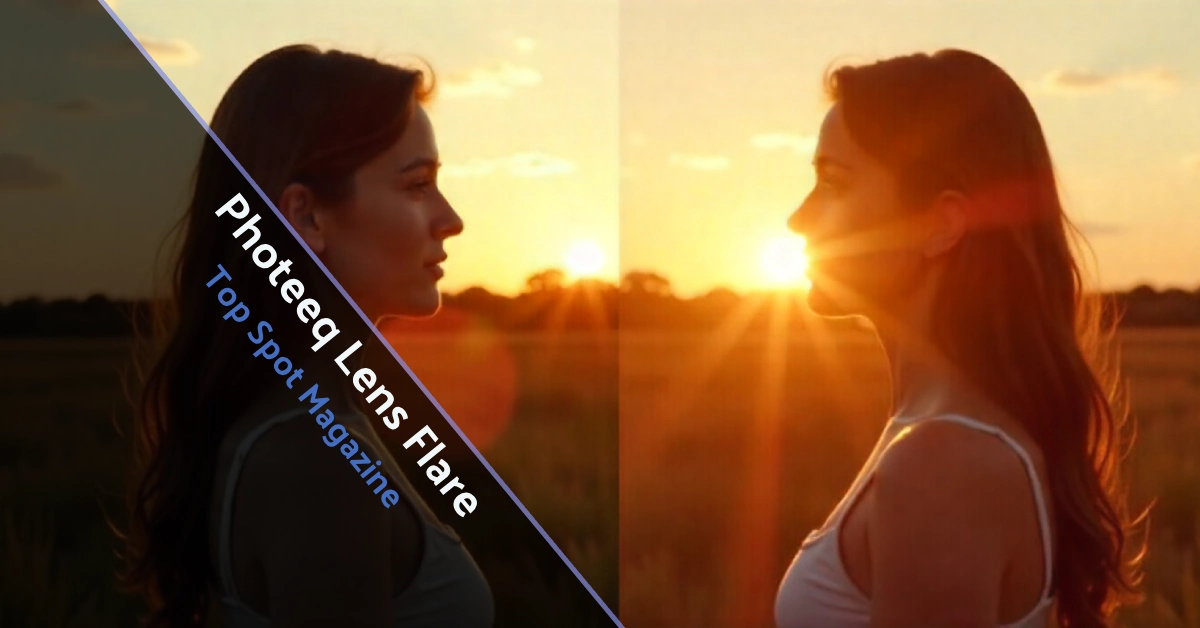
Most photos scroll past in half a second. You need something that makes thumbs stop. That’s where controlled light direction comes in—bright contrast pulls eyes first, and shaped glow creates mood faster than any filter. Photeeq Lens Flare gives you that edge without reshoots or waiting for golden hour. It’s a digital overlay tool that drops realistic light scatter, streaks, and halos right where you want them. You get full control over intensity, color, and placement inside your standard editor. No complicated lighting setups required.
Table Of Content
This isn’t about faking bad photography. It’s about adding intentional light that frames your subject, guides attention, and sells the emotion you’re after. Whether you’re shooting product shots, portraits, or lifestyle content, this tool speeds up your workflow and keeps results looking natural. Let’s break down what it does, how it works, and when you should use it.
What Photeeq Lens Flare Actually Does
Photeeq Lens Flare is a ready-to-apply overlay pack you drop onto finished images inside Photoshop, Lightroom, or similar editors. It mimics real lens flare—scattered, non-image-forming light that creates streaks, haze, or orbs. The difference is that you control every aspect of it. You place the light source, scale artifacts, and dial strength so the look fits your scene perfectly. Under the hood, it simulates how light interacts with different glass coatings, aperture shapes, and focal lengths using advanced rendering algorithms.
The tool offers moveable light pivots so the glow matches existing highlights. You get scaleable artifacts like rings, streaks, and veiling haze to fit wide or tight crops. Intensity and tint controls let you match brand colors or scene temperatures. Layer and mask workflows ensure faces, labels, and speculars stay readable while the flare adds depth. Preset looks include warm sunset glow, cool anamorphic streaks, and subtle film haze effects ready to deploy in seconds.
What separates this from basic flare filters is precision. You’re not just slapping on a random glow. You’re shaping light direction, matching color temperature to your scene, and blending effects that look like they happened in-camera. It’s designed for creators who care about product clarity, conversions, and visual storytelling. The flexibility means no two images ever look templated.
Why Photographers Add Flare On Purpose
Flare used to be something you blocked for clean contrast. Now it’s a deliberate creative choice that adds warmth, drama, and depth. When employed skillfully, lens flare directs a viewer’s gaze and transforms mundane images into scenes imbued with the warm, magical quality of twilight. Adding a subtle flare behind a model in a portrait instantly evokes a dreamy, nostalgic feeling. It frames subjects and sells mood without needing complicated lighting rigs or perfect weather conditions on set.
Creative shooters lean on flare both in-camera and in post across portraits, landscapes, and product visuals. The reason is simple: our eyes naturally jump to bright contrast and shaped light. Research shows visual assets pull more attention and views than text-only posts. Strong directional light and controlled glow make viewers pause, which improves the odds they read, click, or buy. That’s the strategic value beyond just aesthetics.
You’re no longer at the mercy of nature’s unpredictable lighting. With Photeeq Lens Flare, you create flare effects with precision and consistency. You can add or remove effects at any point in your editing process, offering flexibility that in-camera flare just can’t provide. This is especially useful for catalog updates, batch edits, and maintaining consistent brand looks across multiple shots.
Core Features You Get
The tool gives you complete creative control over how light sources interact with your photos. You can easily simulate different types of flare effects—from soft, dreamy sunbursts to bold, dramatic anamorphic flares. This flexibility helps photographers transform their images, whether it’s a soft backlit portrait or a vivid landscape shot with stunning lighting effects. The real-time preview allows you to see how the flare will look before you apply it, making the editing process intuitive and efficient.
You get customizable flare shapes from simple circles to complex anamorphic streaks. The effect adapts to match the type of lens or scene you’re emulating. Color and intensity controls let you easily adjust brightness, saturation, and hue to complement your photo’s color palette. Positioning and scaling features allow you to place the flare anywhere in the frame and scale it up or down without losing quality. Layer-based editing blends flares with other visual elements using layer modes for seamless integration.
The ability to blend these light effects with the rest of your image ensures your photo still looks natural, even with added flare. Whether you’re looking to add warmth, nostalgia, or just a little pop of light, the tool makes it easy to achieve stunning results. The customization options available also ensure that no two images will ever look the same. You can adjust flare intensity from subtle to bold, matching the exact atmosphere you want for your scene.
Add Flare In Under 60 Seconds
Getting started is straightforward. First, finish your basic edits like exposure, color correction, and cleanup. Then simply introduce an empty layer and apply your chosen Photeeq Lens Flare preset to it. Drag the flare pivot toward your brightest edge or implied light source in the image. Drop intensity until highlights sit just above your scene exposure for a natural look. Mask out critical details like logos, eyes, or product labels that need to stay sharp and readable.
Toggle the flare layer on and off to judge realism at 100% zoom. This mirrors fast “add lens flare in Photoshop” workflows but saves steps when batching multiple images. The process becomes muscle memory after a few tries. You’ll know immediately if the flare aligns with your light source and complements the overall composition. This speed matters when you’re editing client work or updating product catalogs on deadline.
Whether you’re working with a backlit scene, capturing the sunset, or enhancing a product shot, the tool offers a range of flare types to fit your needs. Sunbursts are ideal for outdoor shots where you want to add drama. Bokeh flares work well in portraiture, adding a soft, ethereal quality. If you’re going for a cinematic look, you might choose anamorphic flares to give your photo that movie-like appeal. The beauty is you can experiment with these effects until you find the perfect match.
Settings That Create Natural Results
To get the most out of Photeeq Lens Flare, always align the flare with your light source. If light comes from the left, position the flare on the left side to maintain realism. Misaligned flares break the illusion immediately. Angle alignment should mirror the shadows cast by your primary light source. Stay subtle with opacity between twenty and forty percent—this reads more realistic than full intensity in most cases.
Vary flare size across a series so ads don’t look templated. Combine soft diffusion over hard speculars for a premium product that suggests high-end lighting setups. Test on both light and dark backgrounds because flare lifts blacks fast and can overpower dark scenes. Experienced shooters recommend watching angles, using the sun or a strobe to learn how real flare behaves, then duplicating that logic in post. Pro lighting workflows show that light direction and contrast shape viewer attention effectively.
Another key tip is experimenting with different flare styles and light temperatures. The right flare effect can completely change your photo’s mood. A golden hour flare adds warm, nostalgic feelings to portraits. A cooler blue flare might be perfect for a mysterious or futuristic vibe. Adjust these elements to see how they affect overall composition and tone. Always keep an eye on color harmony between the flare and the rest of your image for cohesive results.
Which Photos Need Lens Flare
Lifestyle ads benefit from a low warm glow behind people to increase perceived authenticity. Audiences stay longer on influencer-style creative that feels real rather than overly polished. Product hero shots use controlled edge light to separate shape. Improved lighting quality links to better product perception and higher click-through rates. Imagine a product shot of a sleek smartphone where a cool, anamorphic flare subtly highlights its edges, making it appear even more cutting-edge and desirable.
Thumbnail images need bright focal accents to lift click-through when competing for attention in grids. Adding a well-placed flare effect can bring cinematic quality that makes your photos stand out in feeds. Music videos and cinematic trailers use stylish flares to emphasize dramatic lighting and modern aesthetics. Event coverage gains a vibrant and immersive feel with carefully applied flare. Landscape photography benefits from natural-looking sun flares that enhance sunsets or midday scenes dramatically and realistically.
Portrait photography uses flares to create dreamy, backlit looks that add depth and emotion. Urban photography simulates the glow of streetlights for moody, atmospheric effects. Photeeq Lens Flare works best with outdoor portraits, backlit shots, sunset photos, and landscape photography. Cityscapes at night can benefit from flare effects, especially cinematic ones that add drama and intensity to urban scenes. The tool elevates your image with artistic lighting across multiple photography styles and genres.
3 Mistakes That Make Flare Look Fake
Misaligned light sources make the effect look obviously fake. If your flare comes from the right but your shadows point left, viewers notice immediately. Always ensure flare direction matches your scene’s actual light source. Oversaturated colors that clash with your scene create visual discord. If your photo has warm tones, using a cool flare effect might create an unpleasant clash. Match flare color temperature to your image for harmonious results that feel intentional.
Low-resolution images make flare edges look jagged and unprofessional. Work with high-quality source files so your flare blends seamlessly without pixelation. Excessive flare can overwhelm your image and distract from the subject. Sometimes less is more—subtle flare effects enhance without dominating. Compare flare and no-flare versions to see which serves your image best before finalizing edits.
Ignoring critical details during masking ruins otherwise good work. Faces, logos, and product labels need to stay readable. Use layer masks to protect these areas while applying flare to the surrounding space. This maintains clarity where it matters most. Testing on different screen sizes and backgrounds helps catch issues before you publish or deliver to clients.
What You Get With Paid Packs
Photeeq Lens Flare is available in several flexible packages to suit your creative needs. The free version provides access to a basic set of flare types and customization features. The paid version unlocks additional flare effects, color options, and advanced settings. Depending on your needs, the free version may be enough for simple edits. The paid version offers more flexibility for professional photographers or anyone looking to explore more cinematic and creative effects thoroughly.
Before grabbing a pack, check the license terms. Does it cover client and paid ad use? Verify file sizes if you need high-resolution for large e-commerce product images. Look for non-destructive layers—editable beats baked JPG every time. Color and intensity sliders speed up brand matching significantly. Batch support is key for catalog updates and maintaining a consistent look across series. Update cadence and support docs to save time when apps update or workflows change.
Industry guides indicate that overlay packs should offer suitable resolution and blend seamlessly. Before purchasing, verify these aspects to avoid disappointment. The investment pays off when you’re batching edits or maintaining brand consistency across dozens or hundreds of images. One-time purchases with no subscription fees make budgeting simpler for freelancers and small studios.
Turn Flat Photos Into Scroll-Stoppers
Flat light kills attention. Controlled glow stops thumbs mid-scroll. Use Photeeq Lens Flare to add believable direction, warmth, or drama in seconds. Then A/B test the result against your control shots to measure actual impact. Visual upgrades that guide the eye can lift engagement and clicks—worth testing on your next campaign or content drop.
The tool is valuable for anyone looking to bring images to life with dramatic lighting effects. It allows you to simulate natural flare effects that enhance your photos’ aesthetic appeal without needing complicated lighting setups. Whether you’re editing landscapes, portraits, or advertising images, this tool helps you achieve results that feel natural yet striking. Full control over flare intensity, color, and placement ensures you create the exact mood or cinematic feel you desire every single time.
Remember that strong visuals move metrics. Enhanced visuals draw more views and attention, which can raise click-through rates and conversions. Test against baseline campaigns to see if revenue lifts. The eye jumps first to bright contrast, and shaped light creates the pause that drives engagement. That’s the real power of adding controlled flair to your workflow.





No Comment! Be the first one.