

What Is Schoology Alfa? Complete Setup and Features Guide
Schoology Alfa is a customized version of PowerSchool’s Schoology Learning Management System, often deployed by specific institutions. It provides course management, assignment tracking,...

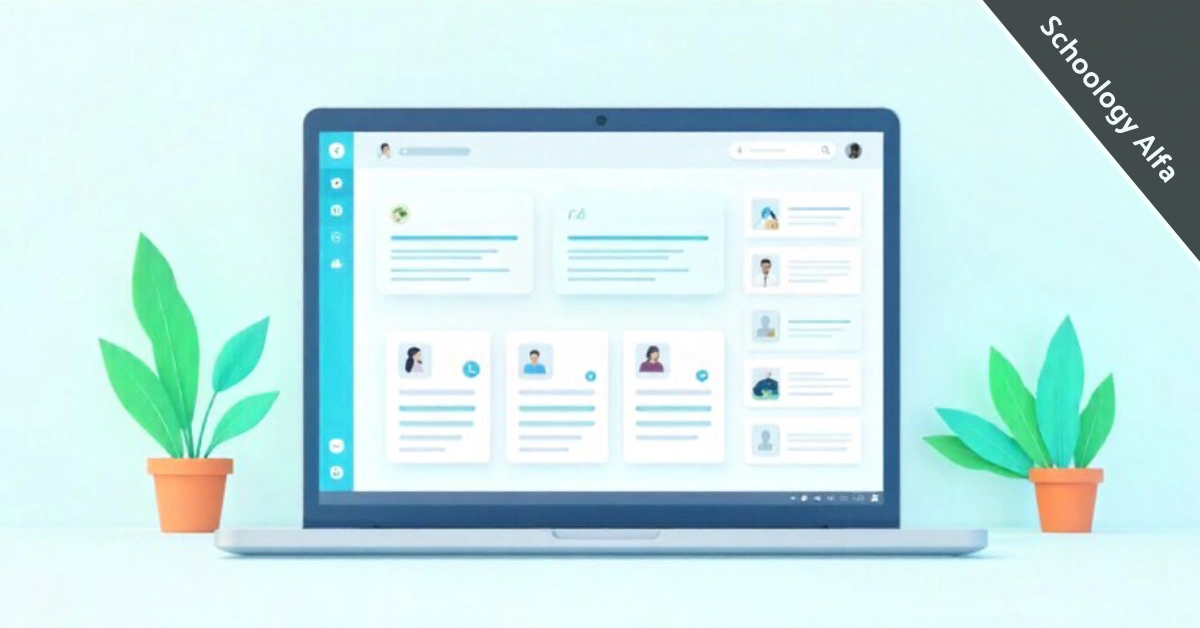
Schoology Alfa is a customized version of PowerSchool’s Schoology Learning Management System, often deployed by specific institutions. It provides course management, assignment tracking, communication tools, and AI-powered features for K-12 students, teachers, and parents in one integrated platform.
Table Of Content
- What Schoology Alfa Is and How It Differs
- How to Access and Log In to Schoology Alfa
- Core Features That Make Schoology Alfa Work
- Assignment and Assessment Tools
- Communication and Collaboration
- New AI Features You Should Know About
- Integration Capabilities and Third-Party Tools
- Mobile App Experience and Features
- Benefits for Students, Teachers, and Parents
- Common Issues and How to Solve Them
- Schoology Alfa vs Other Learning Platforms
- Getting Started
Schools need reliable systems to handle coursework, grading, and communication. Schoology Alfa addresses this by offering a complete learning environment where students access materials, teachers manage classes, and parents monitor progress.
You might wonder what sets this platform apart from standard Schoology or other learning tools. The answer lies in institutional customization, PowerSchool integration, and recent AI additions that personalize the learning experience. This guide walks you through everything you need to know about accessing, using, and getting the most from Schoology Alfa.
What Schoology Alfa Is and How It Differs
Schoology Alfa represents a customized deployment of the PowerSchool Schoology Learning platform. Think of it as a branded version tailored for specific schools or organizations, most notably institutions like Alfa Fundación.
The core system remains Schoology Learning, which PowerSchool acquired in 2019. This acquisition brought together a leading Student Information System with a powerful Learning Management System. What you get is tight integration between attendance tracking, grade management, and course delivery.
Standard Schoology serves any institution that signs up. Schoology Alfa runs on the same technology but carries institution-specific branding, custom URLs, and potentially unique feature configurations. Your school determines the exact setup, permissions, and tools available to you.
K-12 schools primarily use this platform, though some higher education institutions and corporate training programs have adopted it. The system scales from elementary students needing simple interfaces to high school students managing complex course loads.
How to Access and Log In to Schoology Alfa
Your school provides a specific URL for accessing Schoology Alfa. This typically follows the pattern schoology.yourinstitution.edu or alfafundacion.schoology.com, depending on your organization. Bookmark this URL for quick access.
You need three things to log in: your username (often your school email or student ID), your password, and potentially an access code for first-time setup. Your school administration or teacher provides these credentials through official channels. Never share login information with others.
First-time users start by visiting the institution’s Schoology URL. Enter your credentials and follow prompts to set up your profile. You’ll add information like your grade level, contact details, and notification preferences. This initial setup takes about five minutes.
Forgot your password? Click the “Forgot Password” link on the login screen. You’ll receive a reset email at your registered address. If you don’t get this email within 10 minutes, check your spam folder or contact your school’s IT support.
Core Features That Make Schoology Alfa Work
Your dashboard displays all enrolled courses as individual cards or tiles. Click any course to view its materials, assignments, and updates. Teachers organize content into folders, modules, or units that follow your curriculum structure.
Each course contains a materials section where you find documents, presentations, videos, and links. Teachers update this regularly, so check back before class sessions. You can download most files for offline reference, though some interactive content requires internet access.
The calendar view shows upcoming assignments, tests, and events across all your courses. This centralized timeline prevents deadline conflicts and helps you plan study time effectively.
Assignment and Assessment Tools
Teachers create assignments with clear instructions, due dates, and point values. You’ll see assignments listed under each course’s “Upcoming” section. Click into any assignment to view requirements, attached rubrics, and submission instructions.
Submitting work happens directly through the platform. Upload files, paste text, or link to external content depending on assignment type. You get a confirmation message once the submission succeeds. Late submissions show a warning, but teachers control whether they accept past-deadline work.
Tests and quizzes appear as timed assessments. You must complete these in one sitting unless your teacher enables a save-and-resume feature. The system automatically grades multiple-choice and matching questions. Essay responses require manual teacher review.
Grading transparency sets Schoology apart. You see your score, feedback, and rubric evaluation for every graded item. Teachers often add personalized comments explaining strengths and areas for improvement. This immediate feedback loop accelerates learning.
Communication and Collaboration
The messaging system connects you directly with teachers and classmates. Send private messages, create group conversations, or post to course-wide discussion boards. All communication stays within the platform, maintaining school oversight and safety.
Teachers use announcements for time-sensitive updates. These appear prominently on your dashboard and trigger notifications if you’ve enabled them. Important policy changes, schedule adjustments, and urgent reminders reach you this way.
Discussion boards support threaded conversations where students respond to prompts and engage with peer answers. Teachers often grade participation in these forums, making thoughtful contributions part of your coursework.
Group projects get their own collaboration spaces. Share documents, divide tasks, and communicate within dedicated project areas. Your teacher monitors progress without interrupting your workflow.
New AI Features You Should Know About
PowerBuddy AI assistant arrived in Schoology in 2024, bringing personalized academic support directly into your workflow. Students access PowerBuddy through a dedicated icon in their assignment interface. Ask questions about course material, request explanations of difficult concepts, or get guidance on approaching complex problems.
The AI doesn’t provide direct answers to homework. Instead, it guides you toward understanding through questions, hints, and simplified explanations. Think of it as a tutor available 24/7, adapting its teaching style to your learning pace.
Teachers gained their own AI tools for content creation. Generative AI helps educators draft discussion prompts, create quiz questions, and develop assignment instructions faster. The system suggests content aligned with specific standards and grade levels. Teachers review and customize all AI-generated material before students see it.
Safety measures protect students using these AI features. The system monitors conversations, blocks inappropriate requests, and maintains privacy standards. PowerBuddy operates within a controlled environment designed specifically for K-12 education, unlike general-purpose AI chatbots.
Integration Capabilities and Third-Party Tools
Google Workspace integration received a major upgrade in July 2024 with the shift to the LTI 1.3 standard. You can now embed Google Docs, Sheets, and Slides directly into assignments. Teachers distribute template documents that you complete without leaving Schoology. Changes save automatically to your Google Drive.
Microsoft 365 users enjoy similar functionality. Attach Word documents, Excel spreadsheets, and PowerPoint presentations from your OneDrive. Edit files inline and submit completed work with one click.
Zoom meetings integrate seamlessly for virtual classes. Teachers schedule video sessions through Schoology’s interface. You join meetings with a single click, no separate login required. Session recordings often appear in course materials for later review.
ContentNav represents a newer addition that expands available learning resources. This repository holds millions of educational objects from multiple vendors. Teachers search by standard, grade level, and content type, then assign materials directly to your courses. You gain access to a broader library without juggling multiple platforms.
Mobile App Experience and Features
The Schoology mobile app serves both iOS and Android devices with nearly identical functionality. Download the app from your device’s official store, then log in using your web credentials. The app remembers your login for quick access.
Offline mode lets you view previously loaded materials without an internet connection. Download important documents before traveling or moving to areas with weak connectivity. You can’t submit assignments offline, but you can prepare work for later upload.
Teachers grade assignments through mobile interfaces with full rubric access and feedback tools. This flexibility means faster turnaround times on your submissions. Many teachers grade during commutes or breaks, speeding up the feedback cycle.
Push notifications alert you to new assignments, grades, messages, and announcements. Customize notification settings in the app’s preferences menu. Turn off non-urgent updates to avoid notification overload while keeping critical alerts active.
Benefits for Students, Teachers, and Parents
Students gain flexibility in how and when they learn. Access materials at home, review recorded lessons multiple times, and submit work during hours that match your schedule. You’re no longer bound to classroom walls or rigid timing constraints.
The platform personalizes your experience through PowerBuddy AI assistance and adaptive learning paths. Struggle with a concept? The system identifies gaps and suggests targeted practice. Excel in an area? Teachers can assign enrichment materials without disrupting class pace for others.
Progress tracking gives you clear visibility into your academic standing. No surprises when report cards arrive. You see exactly where you stand in every course, which assignments affect your grade most, and where improvement efforts pay off fastest.
Common Issues and How to Solve Them
Login failures usually stem from incorrect passwords or accessing the wrong URL. Verify you’re using your institution’s specific Schoology address, not the general schoology.com homepage. Check that Caps Lock is off, as passwords are case-sensitive.
Can’t find the password reset email? Look in spam folders first. Some school email systems flag automated messages. If you still don’t receive it after 15 minutes, contact your school’s IT helpdesk with your username. They can manually reset your credentials.
Assignment submission errors often result from file size limitations or unsupported formats. Most platforms cap individual files at 50MB. Compress large documents or split submissions if needed. Stick to common formats like PDF, DOCX, JPEG, and PNG for best compatibility.
Schoology Alfa vs Other Learning Platforms
| Feature | Schoology Alfa | Canvas | Google Classroom | Moodle |
|---|---|---|---|---|
| Target Audience | K-12 | K-12 & Higher Ed | K-12 | All Levels |
| AI Assistant | Yes (PowerBuddy) | Limited | No | No |
| SIS Integration | PowerSchool Native | Multiple Options | Limited | Custom Development |
| Cost Model | Institutional License | Institutional License | Free | Free/Self-hosted |
| Mobile Experience | Native Apps (iOS/Android) | Native Apps | Native Apps | Mobile-optimized Web |
| Standards Tracking | Built-in | Available | External Tools Needed | Plugin Required |
| Parent Portal | Dedicated Dashboard | Available | Limited View | Custom Setup |
| Assessment Tools | Comprehensive | Comprehensive | Basic | Extensive |
| Learning Curve | Moderate | Moderate | Low | Steep |
Schoology Alfa excels when your institution already uses PowerSchool for student information management. The native integration eliminates double data entry and creates a unified platform for all educational technology needs. Schools report this integration as the primary reason for choosing Schoology over competitors.
Canvas offers broader higher education support and slightly more customization options. However, its complexity can overwhelm K-12 teachers and students who don’t need college-level features. Canvas works well for districts serving students from kindergarten through community college programs.
Google Classroom wins on simplicity and cost. Small schools or individual teachers often start here. The free model and familiar Google interface lower adoption barriers. You sacrifice advanced features like standards tracking, comprehensive grading tools, and native SIS connections.
Getting Started
Set up your profile completely during your first session. Add a profile picture if your school allows it, verify contact information, and adjust privacy settings. Complete profiles help teachers and classmates identify you in discussions and group projects.
Configure notification preferences early. Decide which events warrant immediate alerts versus daily digests. Most students enable instant notifications for grades and messages while choosing daily summaries for announcements and discussion replies. This balance keeps you informed without constant interruptions.
Join your first course by entering the access code your teacher provides. Some schools pre-enroll students, making courses appear automatically. Verify you see all your classes on the dashboard. Missing a course? Contact your teacher for the correct enrollment code or ask your school to add you manually.
Explore the dashboard layout. Locate your calendar, recent activity feed, and course list. Familiarize yourself with navigation menus and search functions. Five minutes of exploration prevents confusion when you need to submit your first assignment under time pressure.



No Comment! Be the first one.